Difference between revisions of "Remote Access VPN Client - FortiClient"
| (5 intermediate revisions by the same user not shown) | |||
| Line 3: | Line 3: | ||
*1. Open start menu and search for 'Company Portal' | *1. Open start menu and search for 'Company Portal' | ||
*2. Open 'Company Portal' | *2. Open 'Company Portal' | ||
| − | *3. Search for 'FortiClient VPN' and open | + | *3. Search for 'FortiClient VPN' and open it. |
*4. Click 'Install' | *4. Click 'Install' | ||
| − | *5. Once installed - look for the FortiClient icon in your system tray and open | + | *5. Once installed - look for the FortiClient icon in your system tray and open it. |
| + | *[[File:Fcvpn1.png|300px]] | ||
*6. Click 'Connect' | *6. Click 'Connect' | ||
| − | *7. Login with your A number with @mcla.edu and your password, then authenticate via MFA | + | *[[File:Fcvpn2.png|300px]] |
| + | *7. Login with your A number with @mcla.edu and your password, then authenticate via MFA when prompted. | ||
*8. VPN should then connect and enable you to access the internal resource of your choosing. | *8. VPN should then connect and enable you to access the internal resource of your choosing. | ||
*'''Note:''' If certain internal resources aren't connecting for you, it is likely that you don't have the right permissions. Please reach out to the Help Desk to request access. | *'''Note:''' If certain internal resources aren't connecting for you, it is likely that you don't have the right permissions. Please reach out to the Help Desk to request access. | ||
Latest revision as of 17:55, 11 July 2024
MCLA offers VPN services to support faculty and staff users working remotely that need access to resources that are typically only accessible from inside the MCLA network. MCLA uses FortiNet VPN to provide this service. The FortiClient needs to be installed and used to connect. Please follow these steps:
- 1. Open start menu and search for 'Company Portal'
- 2. Open 'Company Portal'
- 3. Search for 'FortiClient VPN' and open it.
- 4. Click 'Install'
- 5. Once installed - look for the FortiClient icon in your system tray and open it.
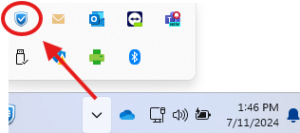
- 6. Click 'Connect'
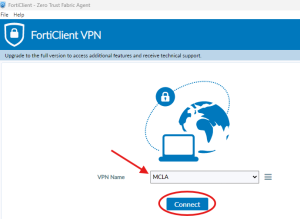
- 7. Login with your A number with @mcla.edu and your password, then authenticate via MFA when prompted.
- 8. VPN should then connect and enable you to access the internal resource of your choosing.
- Note: If certain internal resources aren't connecting for you, it is likely that you don't have the right permissions. Please reach out to the Help Desk to request access.


